Introduction to DrugFlow
1. Platform Overview
DrugFlow is an integrated computational platform that covers the entire drug discovery process. It creatively integrates artificial intelligence with physics-based computation technologies, incorporating multiple independently developed features along the key stages of drug discovery: target identification and validation, lead compound discovery, and lead optimization.
DrugFlow aims to help users reduce the time and cost associated with searching for lead compounds. It enables users to screen for candidate molecules that combine high activity with excellent drug-like properties, thus accelerating the progression of small molecule drugs toward clinical trials.

Figure 1. Features available in DrugFlow
This user manual is meant to help you quickly understand and get started with DrugFlow. If you have any other questions about using the platform, please contact us.
2. Overall Structure of DrugFlow
On the homepage of the DrugFlow website, you can learn about the current capabilities of DrugFlow, along with some basic introductions. You will need to register an account to use the platform’s tools. If you don’t have a DrugFlow account, you can click the “Register” button at the top right of the homepage to go to the account registration page (Figure 2). If you already have an account, click the “Login” button to be redirected to the login page.
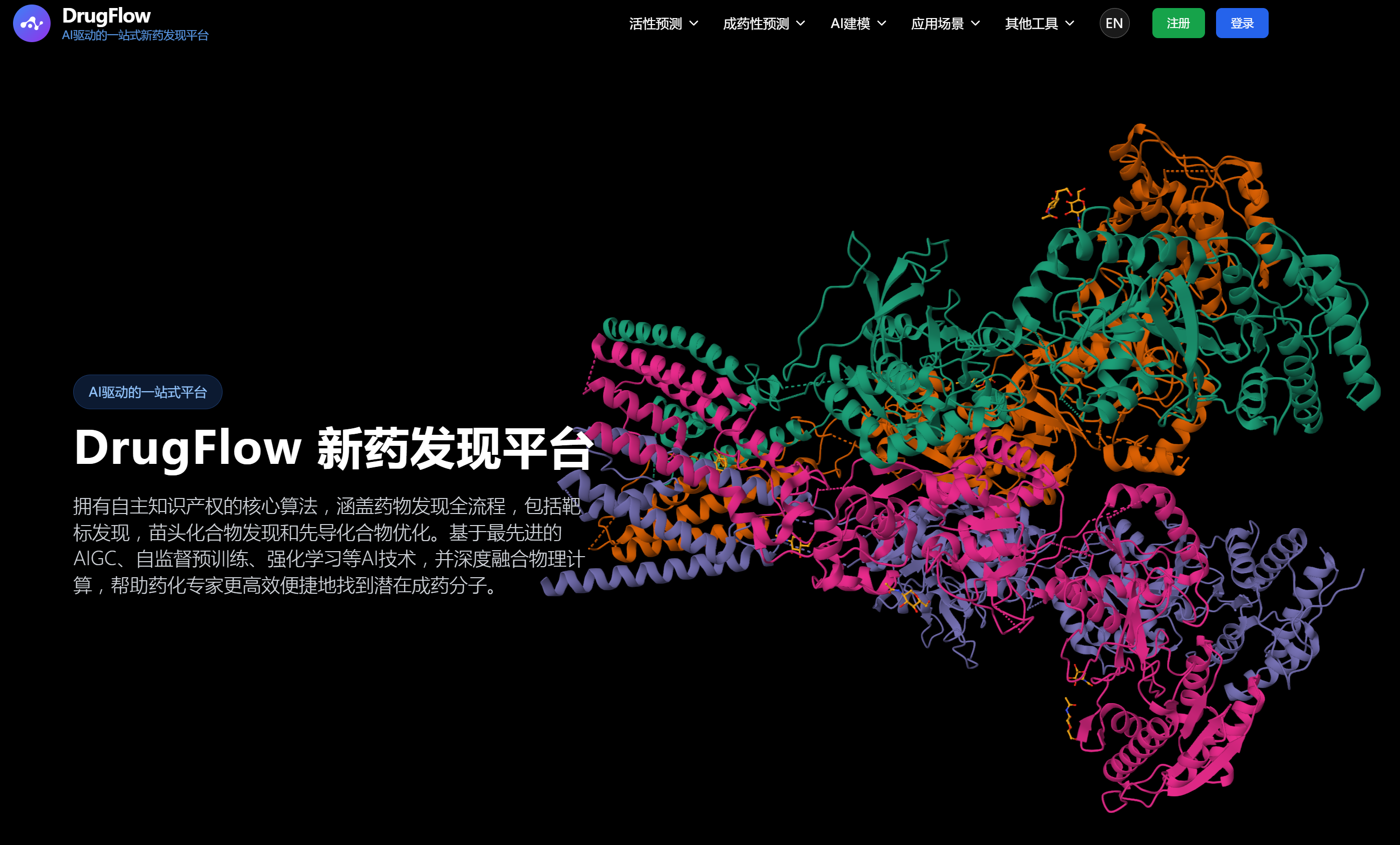
Figure 2. DrugFlow Homepage
3. Registering/Logging into DrugFlow
After entering the DrugFlow registration page, fill out the information as prompted on the page. Check the box “I have read and agree to the User Agreement and Privacy Policy” at the bottom, then click Register. Once registration is complete, the system will send a verification email to your mailbox. Please follow the instructions in the email to activate your account. After successful activation, you can log in to DrugFlow using your account and password.
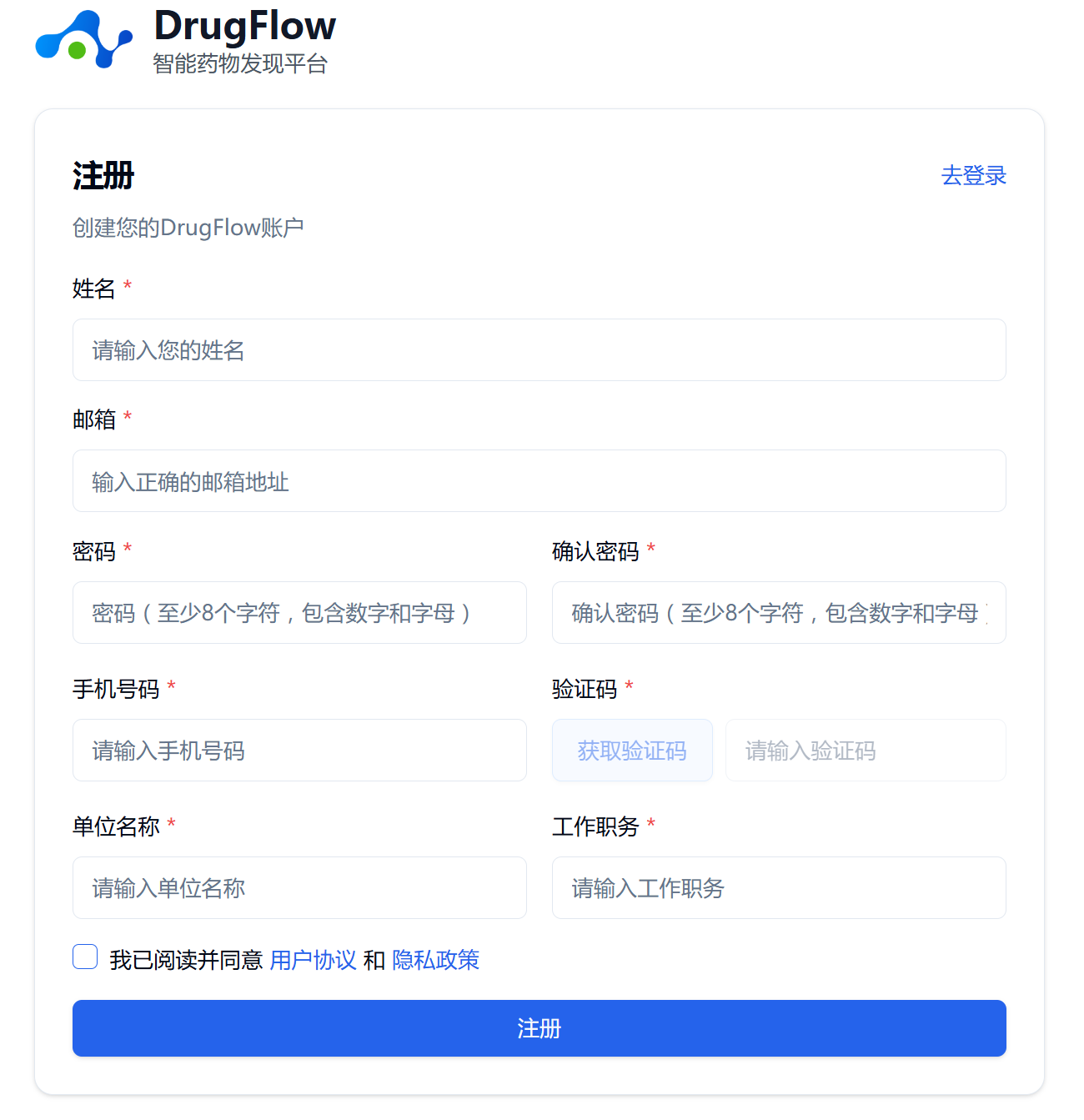
Figure 3. DrugFlow Registration Page
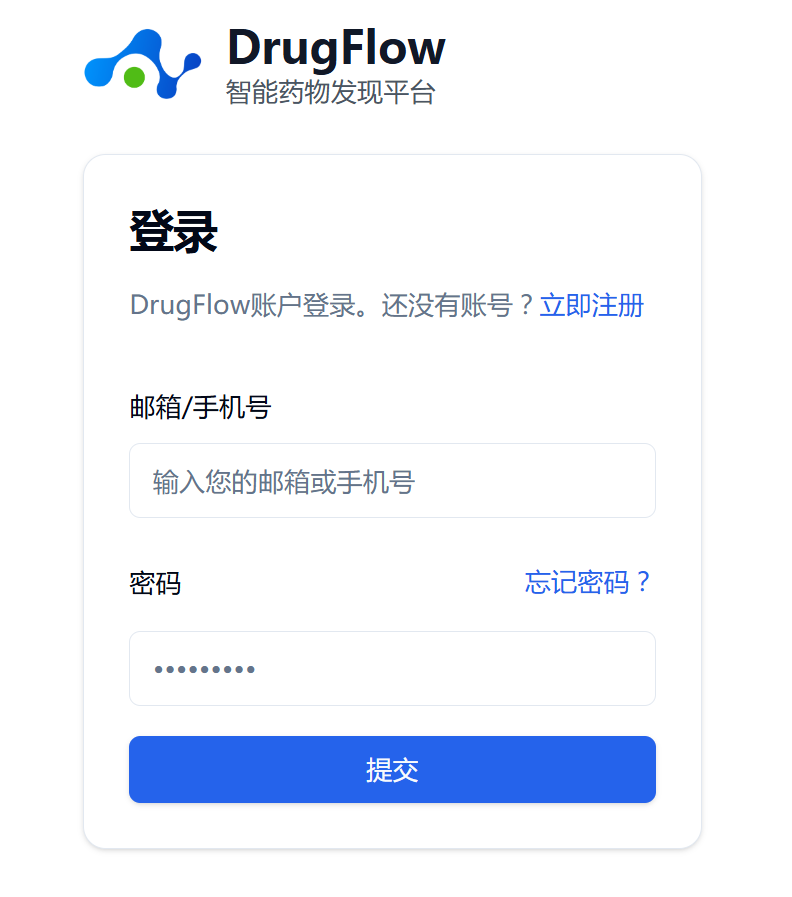
Figure 4. DrugFlow Login Page
Note! Please make sure to provide authentic information. Your registration information will be reviewed by staff after you sign up. Only accounts that pass the review can obtain one month of DrugFlow trial access.
4. Creating a Workspace
After logging into DrugFlow, you need to create a workspace. Also referred to as a working space, a workspace is a project management tool provided by DrugFlow for users. For different projects, you can create different workspaces to better manage project files and data. The system provides each workspace with a task list and a data center.
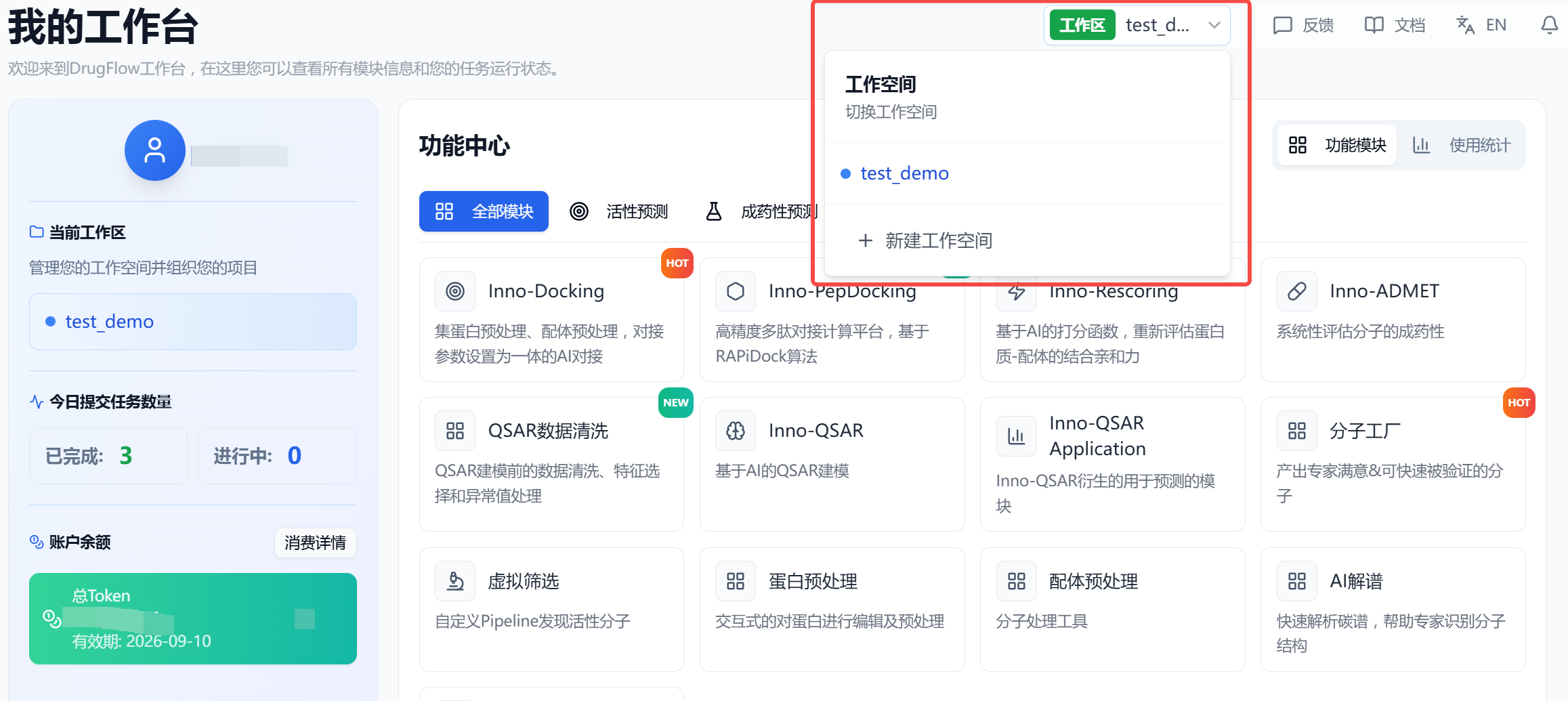
Figure 5. Creating a Workspace
5. My Dashboard
After creating a workspace, the page enters My Dashboard: This page provides users with an overview, where you can view information about task quantities submitted, quick access to features, and statistics on the usage frequency of each module.
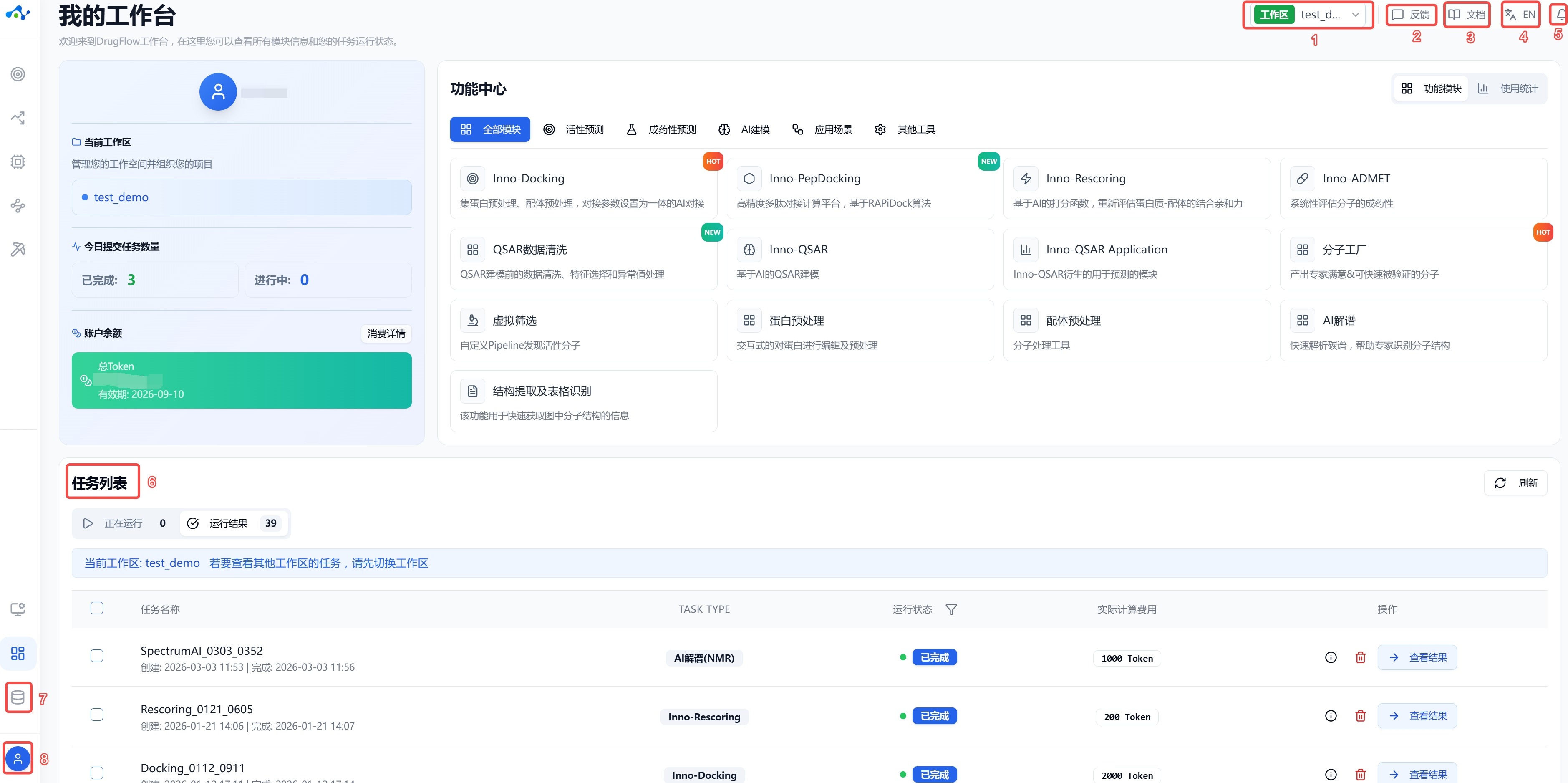
Figure 6. My Dashboard
(1) Switch/Create Workspace
Click this button to display all created workspaces in a dropdown menu. You can switch workspaces by clicking on one, or click the “plus” sign to create a new workspace.
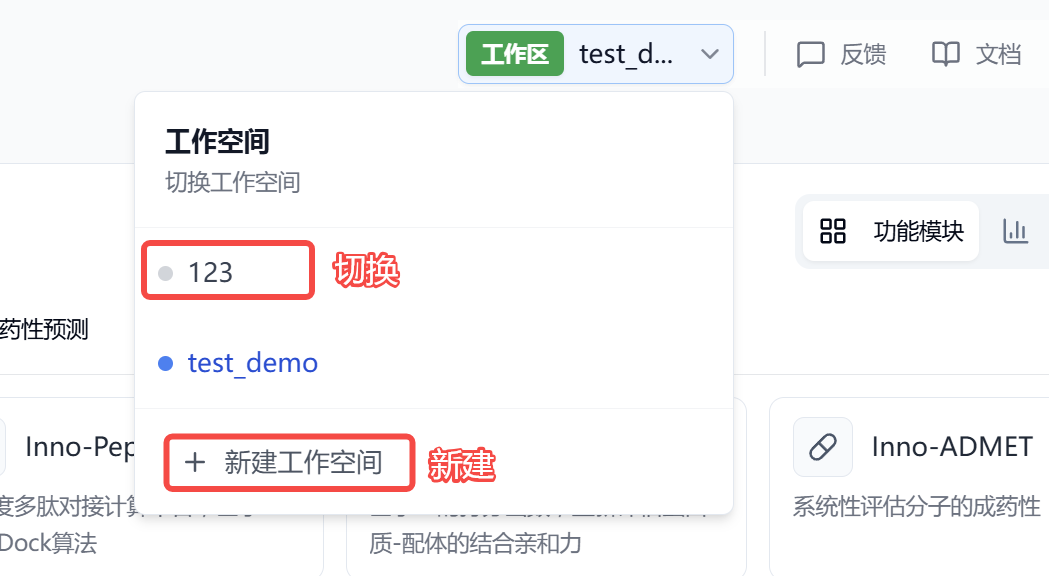
Figure 7. My Dashboard - Create/Switch Workspace
(2) Feedback
If you encounter any problems while using DrugFlow, you can click the [Feedback] button to send a message to the platform staff, allowing them to quickly resolve any issues you experience.
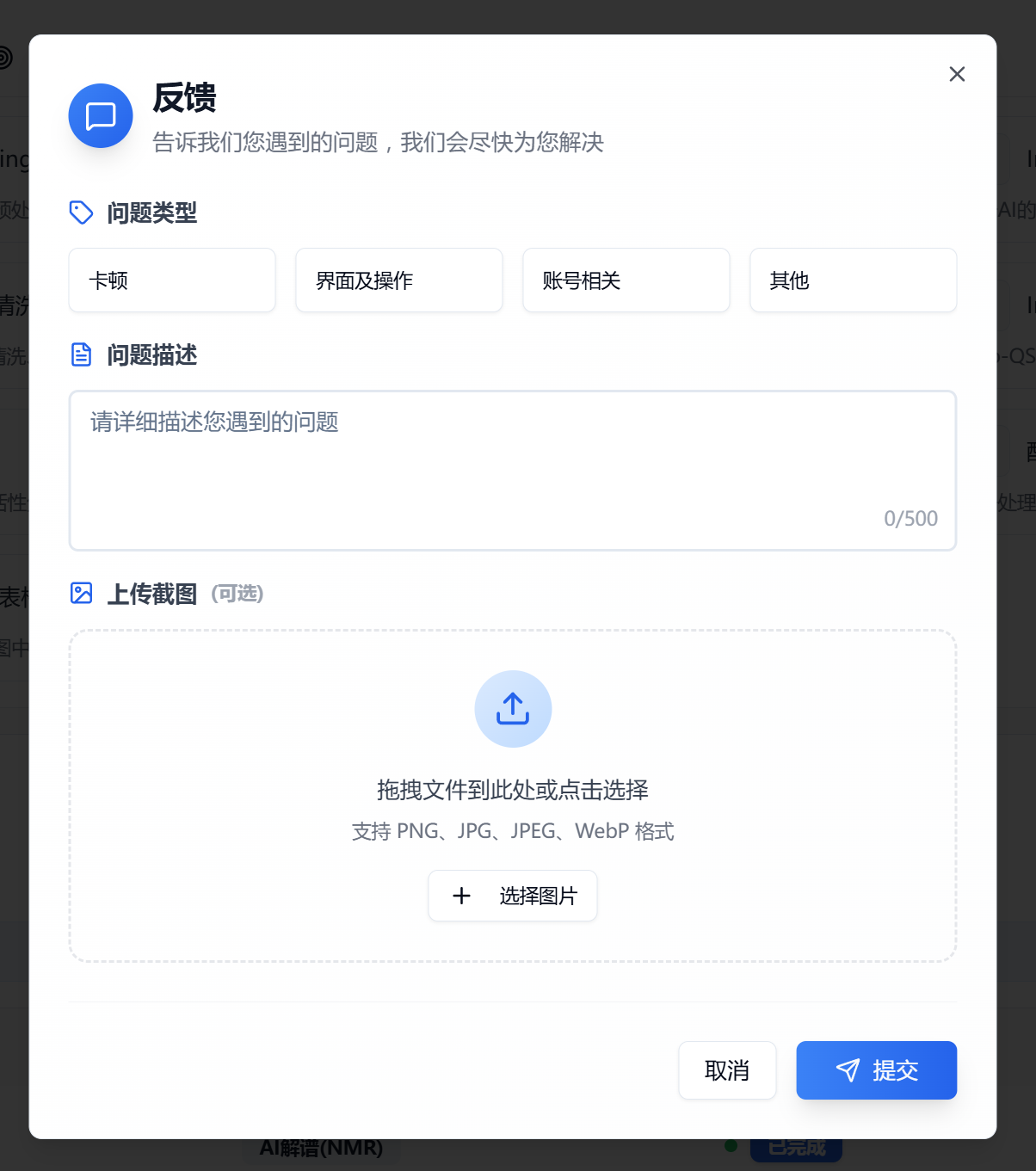
Figure 8. My Dashboard - Feedback
(3) Documentation
Click this button to go to the user documentation page.
(4) Language Switch
The platform supports bilingual display in both Chinese and English. You can switch between the two languages according to your preference.
(5) Notifications
Clicking this button will open a dropdown showing all ongoing tasks in the current workspace.
(6) Task List
The task list is mainly used to view all tasks submitted in the current workspace, including ongoing and completed ones. You can perform the following related operations on tasks via the operations column:
- Parameter details: View the details of task parameters to help you better understand the specifics;
- Abort: If your task is running, you can use this button to stop the task;
- Delete task: Use this button to delete the record of the corresponding task;
- View error: When a task fails, you can view the error details using this button;
- View results: Once your task completes successfully, you can access the results page via this button to view the computation results.

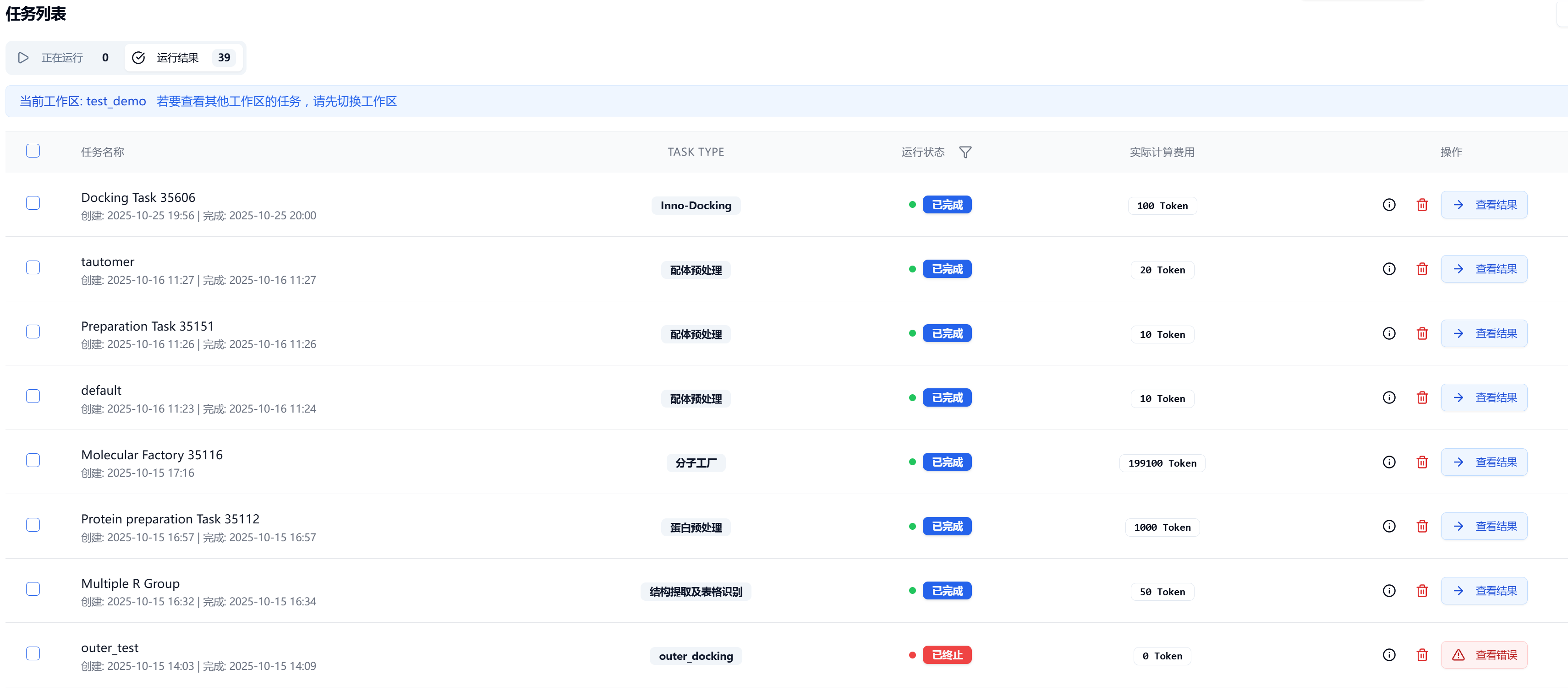
Figure 9. Task List
(7) Data Center
Clicking this button takes you to the Data Center page. Here you can view all uploaded and saved data, and also perform data deletion. Hovering the mouse over a particular data item allows you to delete, download to your local computer, or modify the data name. By clicking a data item, a popup window will display its details. PDB files will show protein 3D structures, while CSV or SDF files display table information. Data can be downloaded from the popup page.
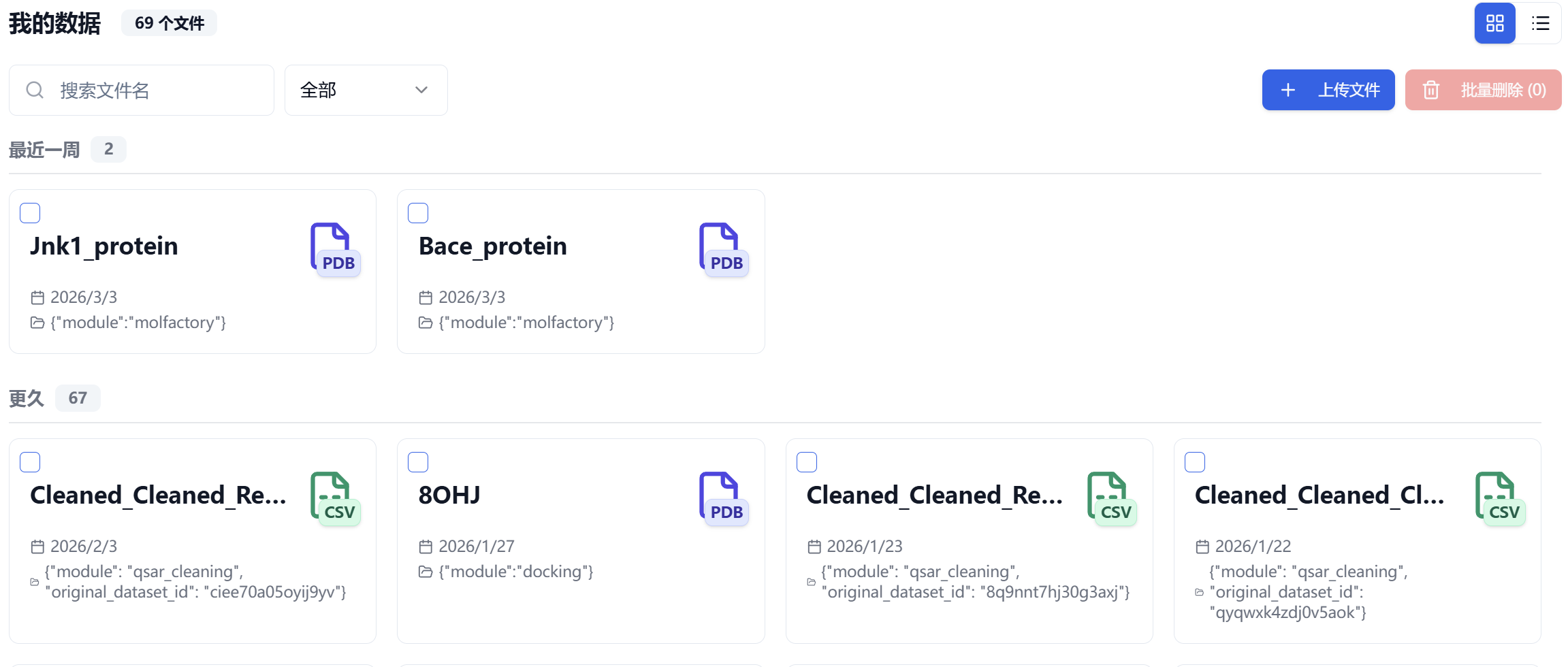
Figure 10. Data Center
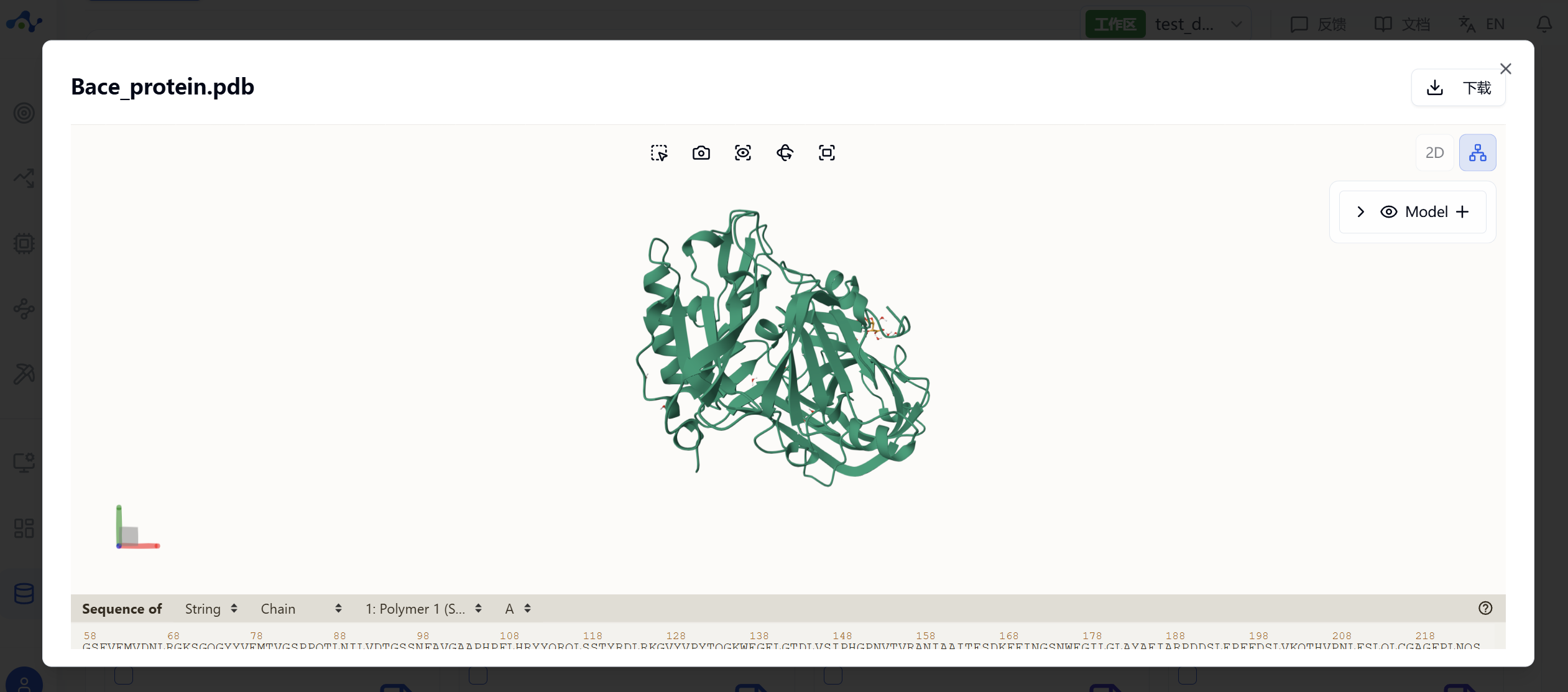
Figure 11. Data Center - Viewing Protein Data
(8) Account Settings and Logout
Clicking your avatar reveals the account settings and logout buttons. Account settings mainly allow you to view and edit personal information, while clicking “Logout” will log you out from your account.
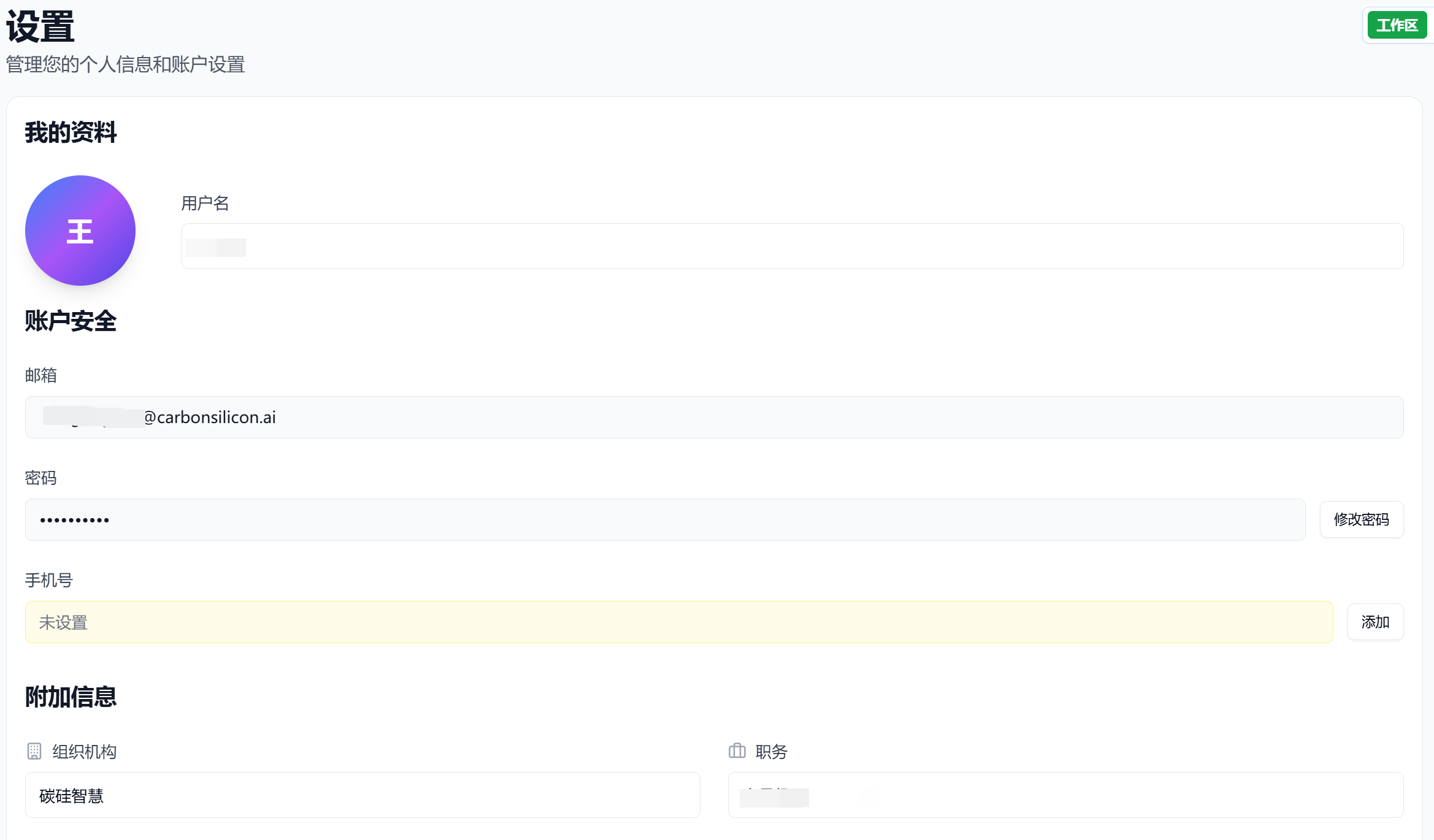
Figure 12. Account Settings
6. About Trial User Permissions
Currently, DrugFlow distinguishes between trial users and official users. Both user types may use all modules, but permissions differ. Once a trial account is approved, it is given a quota of 2,000,000 tokens and generally a one-month trial period. When the tokens are used up or the trial period ends, you will no longer be able to use DrugFlow. If you wish to continue using DrugFlow, please contact staff via the QR code below. Official users have access to all online features.
We welcome you to try and purchase DrugFlow to enjoy a better user experience. If you encounter any questions or issues during usage, please use the [Feedback] feature to provide your valuable suggestions and comments. Thank you for your continued support!